Elementary Student Interim Progress Reports
Directions for Elementary building Principals to print Student Interim Progress Reports
Choose Student Progress Report
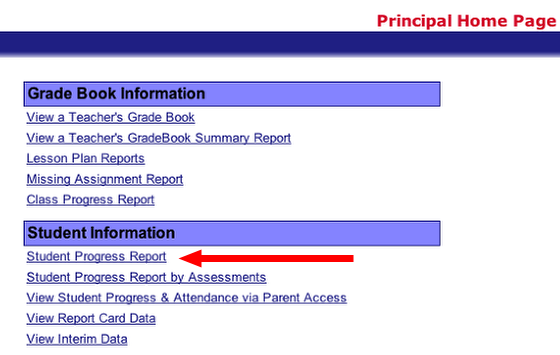
From the ProgressBook Principal Home Page, click on the Student Progress Report link, which is under the Student Information section
Progress Report Settings
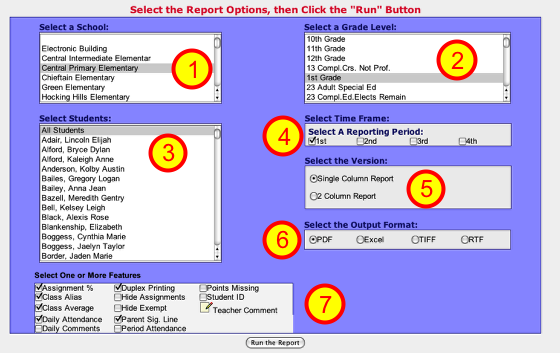
1 - Choose the Building, if necessary
2 - Choose Grade Level (do one grade level at a time please)
3 - Choose All Students
4 - Choose proper Time Frame
5 - Choose Single Column Report
6 - Choose PDF for the output
7 - See options on the next step
Progress Report Features
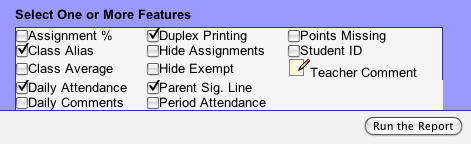
I suggest you choose the following Features:
--Class Alias
--Daily Attendance
--Duplex Printing
--Parent Sig. Line (if you want them to sign & return)
Click the icon by the Teacher Comment, which opens a box for you to type a message that will show on all Reports.
--Please sign and return
--Next PTO meeting will be on...
Click the Run the Report button
Reports open as a PDF in Browser
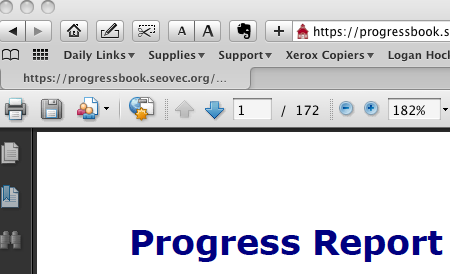
When you click on the Run the Report link in the last step, a multi page PDF file downloads and opens in your browser window.
1 - Choose to Print this report, but note the settings below
2 - Choose your building Xerox copier
3 - Choose duplex printing
4 - Choose to print in Black & White...NOT COLOR
Repeat these steps for the remaining grade levels in your building.
Contact Paul or Leigh Ann if you have problems with these steps