LH Homework Manager
Directions for using the Logan-Hocking Homework Manger
Login to the Logan-Hocking website
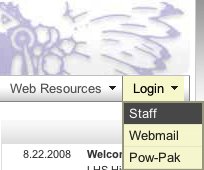
1. Go the Logan-Hocking website http://loganhocking.k12.oh.us
2. Choose Staff under the Login menu
Login & choose Homework Manager
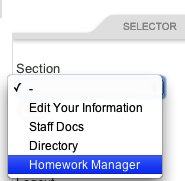
3. Login using your LH email account info
4. Choose Homework Manager from the Section Selector
Assign a subject to classes added before the latest update
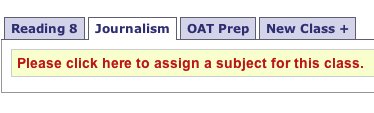
Classes are now linked to Ohio's Academic Content Standards based on the subject of the class. You will need to assign the subject of previously added classes before adding new assignments.
Adding a New Class
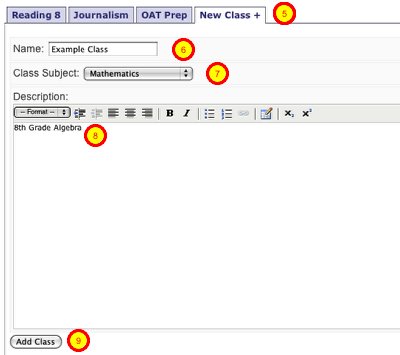
5. Click on the New Class + tab to create a new class in the Homework Manager
6. Give a name to the class that will show in your tabs and as the title for users
7. Choose the Class Subject from the popup menu
8. Give a description of the class. The description will always show about the weekly lessons.
9. Click the Add Class button when ready
Adding your weekly lessons/assignments - 1
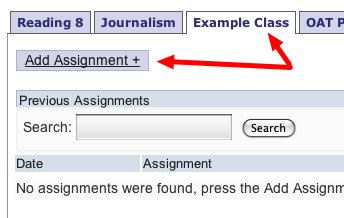
10. Click on a class
11. Click the Add Assignment + link
Adding your weekly lessons/assignments - 2
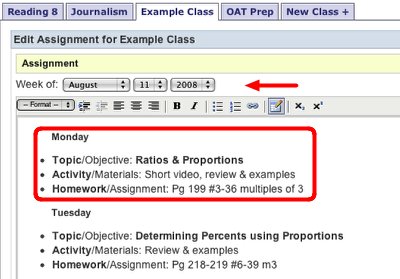
12. Use the popup menus by Week of to choose the first day of the week for the lessons
13. Enter the assignments for the week.
Please be sure to include the following each day of the week in your lessons
a. Day of the week
b. Topic/object being covered
c. Activity and/or materials needed
d. Homework or Assignment
Adding your weekly lessons/assignments - 3
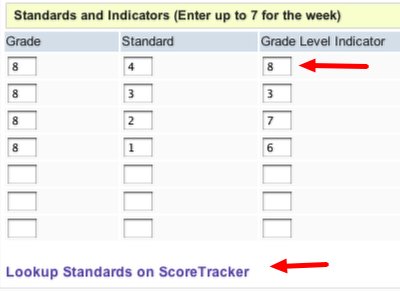
14. Enter the Standards & Indicators being covered during the week using the section below the assignment box. Enter the Grade, Standard & Grade Level Indicator (up to 7 may be entered per week)
15. If you're not sure of the Standards, you can click the Lookup Standards on ScoreTracker link below
Adding your weekly lessons/assignments - 4
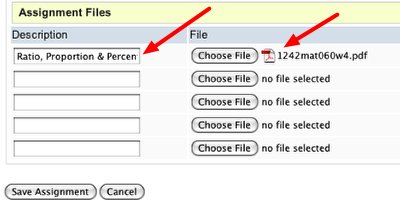
16. Use the assignment files section to post digital handouts
17. Enter a Name/Description for the file
18. Click the Choose File button to locate the file to be posted (Post only PDF files, since everyone doesn't have MS Word installed on their home computer
19. Click the Save Assignment button when ready
Class Tab features
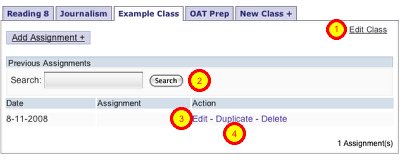
When you click on a class tab you have other options besides just adding an assignment.
1. You can click the Edit Class link to edit the class name, subject or description (as well as deleting the class or making inactive to hide it from the public)
2. You can Search the contents of previously posted assignments
3. You can Edit or Delete a previously posted assignment (assignments do not take up much space, so don't delete posting because the week has past. Only delete postings because of editing issues or duplications)
4. You can Duplicate an assignment posting, which should help in keeping the format similar each week.